
Table of Contents
“Experience streamlined communication with our cPanel email features. Manage personalized addresses, set up autoresponders, and effortlessly forward emails. Track deliveries for enhanced reliability. Our user-friendly interface ensures easy configuration and monitoring, empowering businesses and individuals alike. Elevate your emailing experience with comprehensive tools designed for efficiency and seamless communication management.”
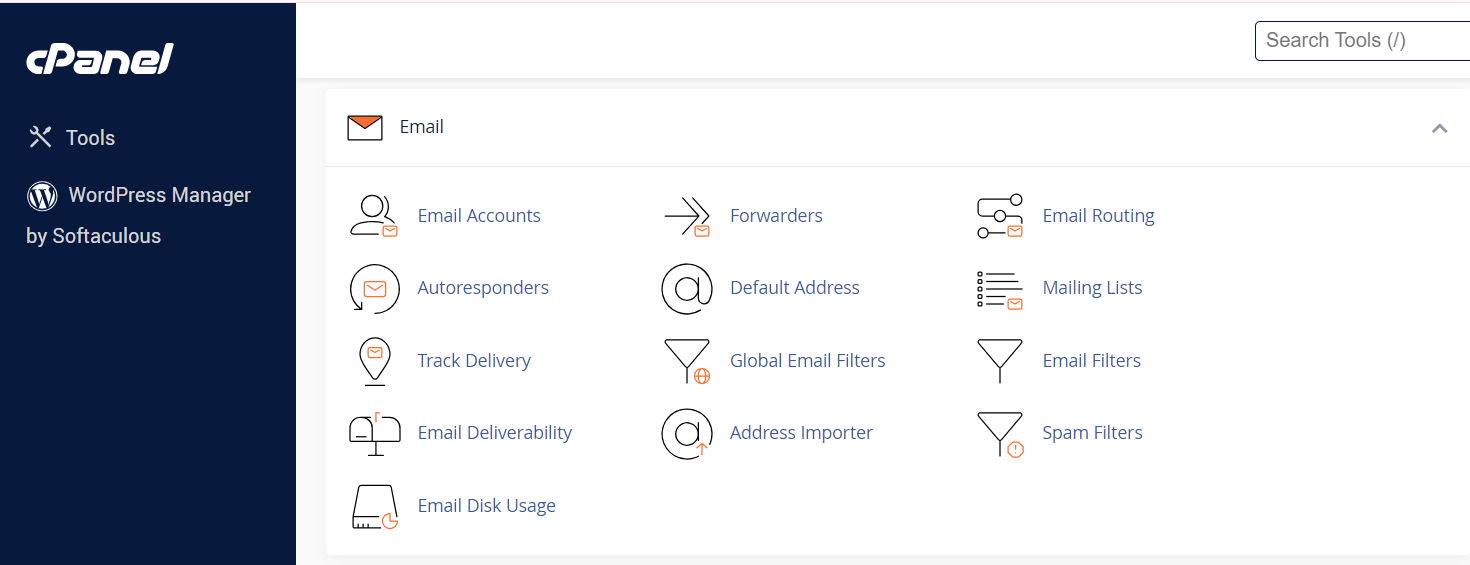
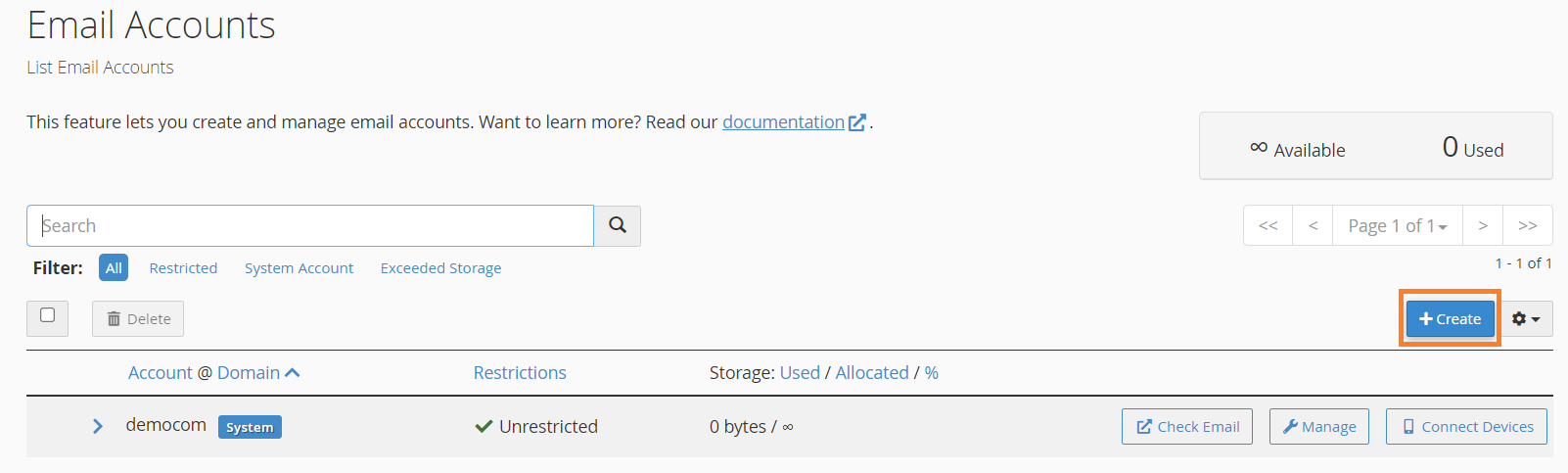
Creating Email id in cPanel
- Once logged in, navigate to the “Email” section. It might be labeled as “Email Accounts” or something similar, depending on the cPanel theme your hosting provider uses.
- Create an Email Account:
- Click on the “Email Accounts” or “Email” section.
- Look for an option to “Create” or “Add” an email account.
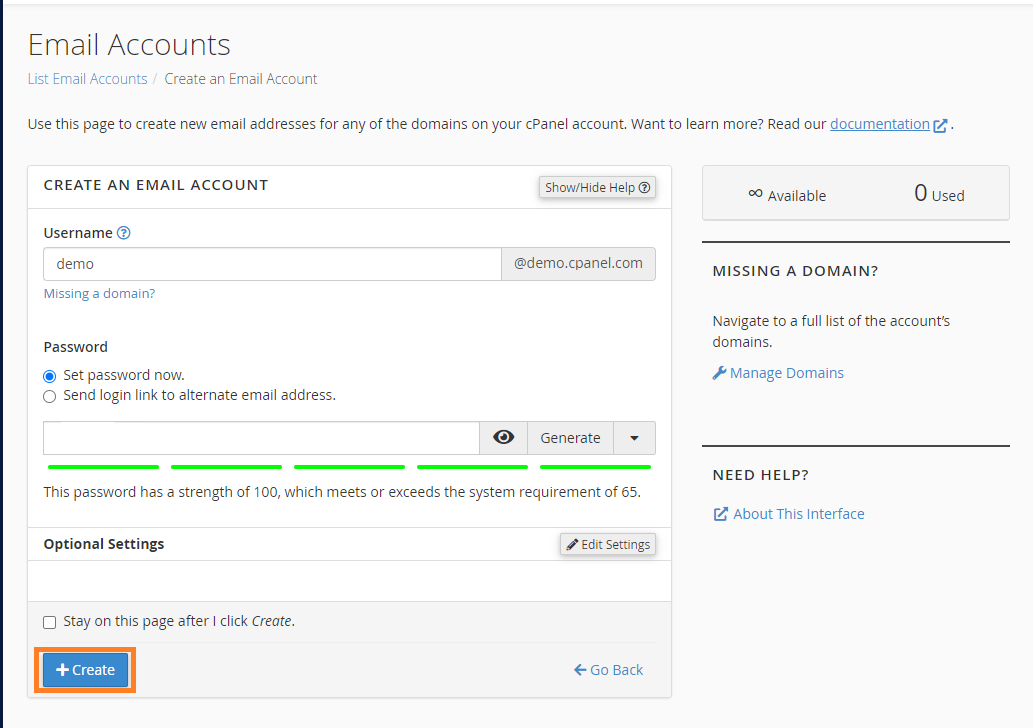
- Enter the required information:
- Email: Enter the desired email address (e.g., name@yourdomain.com).
- Password: Set a secure password.
- Mailbox Quota: Define the storage space for the mailbox (optional, if your cPanel settings allow).
- Click on the “Create” or “Add Account” button.
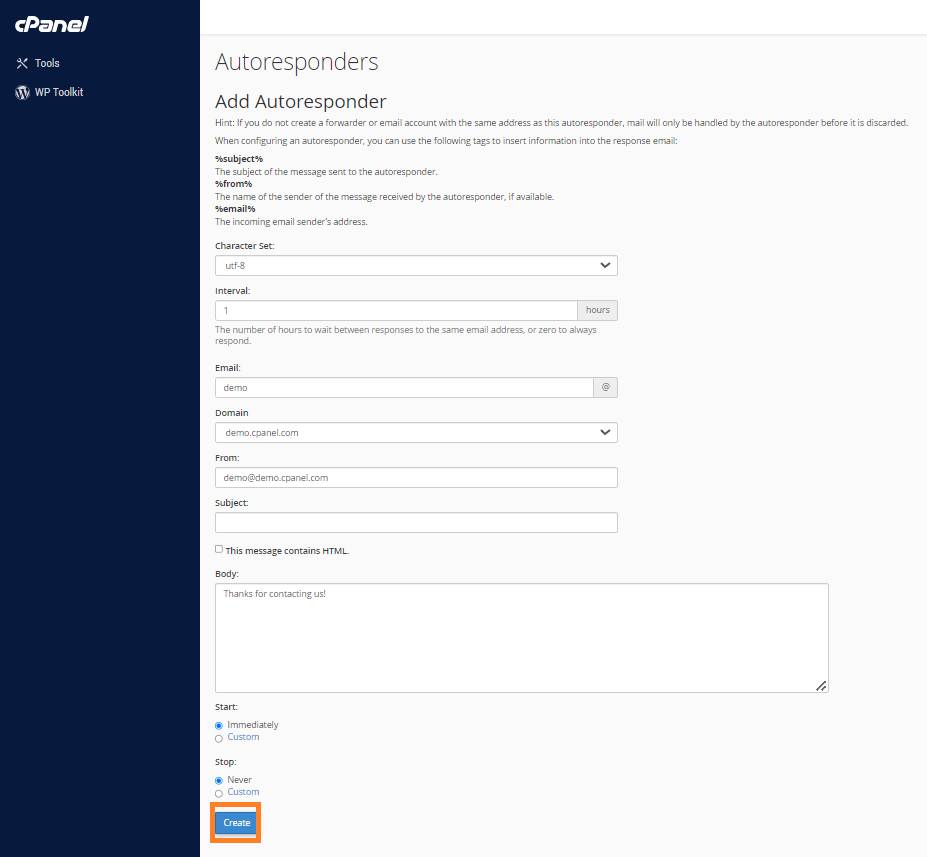
Creating Autoresponder in cPanel
- Find an option to “Add Autoresponder” or “Create Autoresponder.”
- Fill in the required details:
- Email: Select or enter the email address for which you want to set up the autoresponder.
- From: This is the name that will appear in the sender field of the autoresponse email.
- Subject: Enter the subject line for the autoresponse email.
- Body: Write the message you want to be sent automatically as a response to incoming emails.
- Interval: Define if you want to send the autoresponse for every email, once per hour, or once per day, depending on your preference.
- Start and Stop Time (Optional): Set a start and stop date for the autoresponder if you want it to run for a specific period.
About Email routing
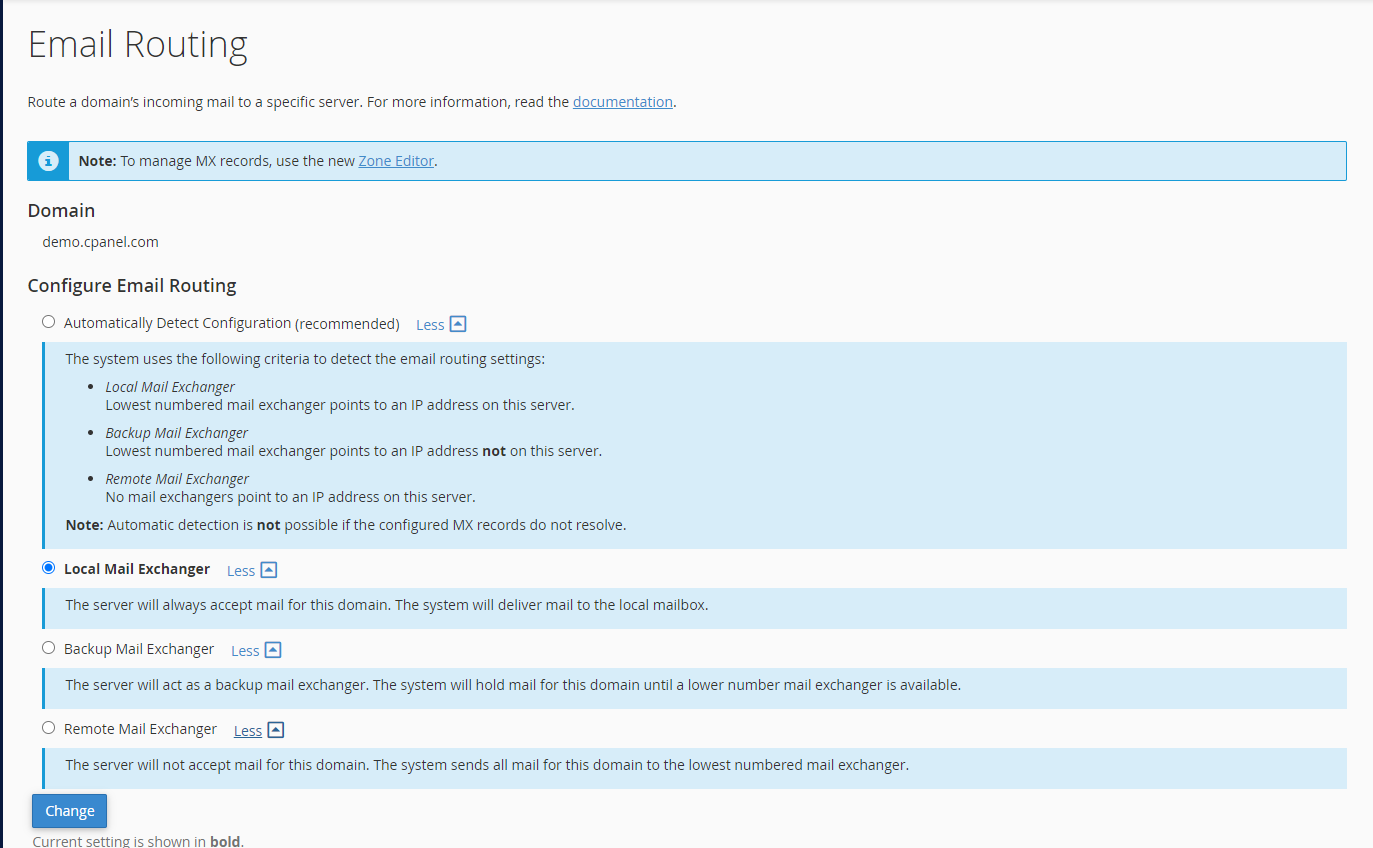
Email routing in cPanel determines how incoming emails for a domain are managed. It allows specifying whether emails should be delivered locally to the server, sent to a remote mail exchanger, or act as a backup. Options include automatic detection based on server configuration, local mail exchanger for server-handled delivery, backup mail exchanger for redundancy, and remote mail exchanger to bypass local delivery and adhere to MX records for routing.
Creating Email forwarders
- Create an Email Forwarder:
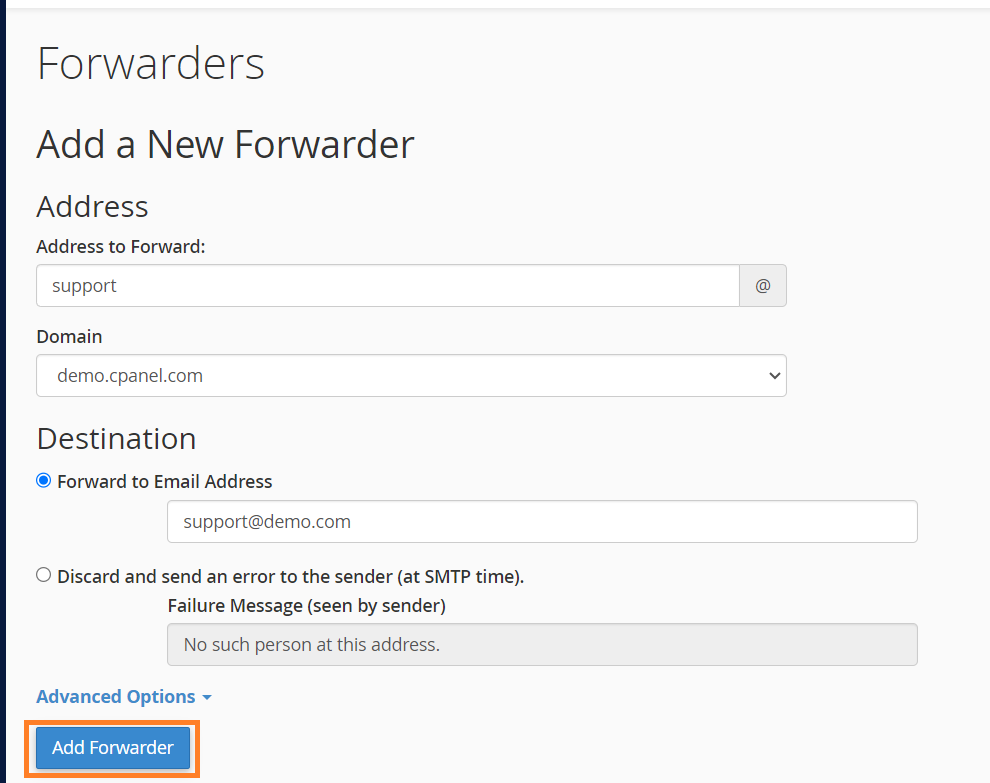
- Find an option to “Add Forwarder” or “Create Forwarder.”
- Choose the domain for which you want to set up the forwarder (if you have multiple domains).
- Select “Add Forwarder” or “Add Forwarding Address.”
- Configure Forwarding Settings:
- Enter the email address from which you want to forward emails (e.g., source@example.com).
- Specify the destination email address where you want the emails to be forwarded (e.g., destination@example.com).
- You might have an option to add multiple forwarders or set up forwarding for specific email addresses or domains.
- Save the Forwarder: Once you’ve entered the necessary details, click on “Add Forwarder” or “Create Forwarder” to save the settings.
About Track Delivery
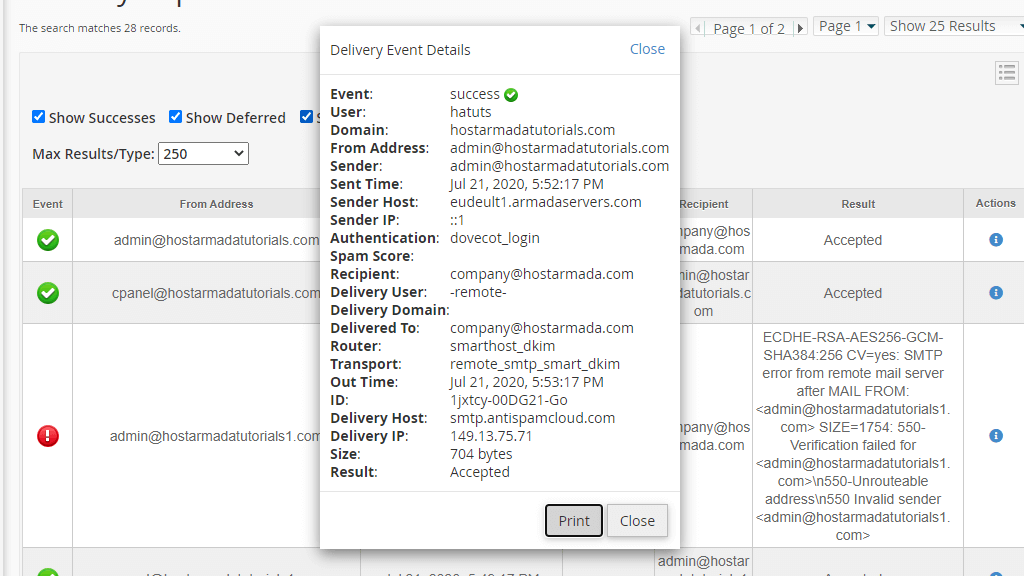
The “Track Delivery” feature in cPanel provides insights into the status of emails sent from your domain. It allows you to monitor the delivery of outgoing emails by providing detailed information about the email delivery process. This includes data regarding successful deliveries, rejections, bounces, and delays.
By accessing the “Track Delivery” tool, users can view the email delivery logs, which typically include information such as the recipient’s email address, delivery status (whether the email was successfully delivered or encountered an issue), the reason for delivery failure if applicable (such as bounced emails due to invalid addresses or spam filters), timestamps, and more.
This feature is particularly helpful for administrators or users who need to troubleshoot email delivery issues, identify potential problems with recipient addresses or mail server configurations, and take corrective actions to ensure that emails are successfully reaching their intended recipients. It aids in maintaining the integrity and reliability of outgoing emails from your domain.
“Harness the power of efficient communication with our cPanel email suite. Empower your digital presence by managing emails effortlessly, ensuring reliable delivery and responsiveness. Take control of your inbox with personalized addresses, automated responses, and detailed delivery tracking. From businesses seeking professional solutions to individuals requiring streamlined management, our comprehensive tools cater to diverse needs. Elevate your communication game and stay connected seamlessly with our robust cPanel email features.”