
Table of Contents
Introduction
Encountering the error “The link you followed has expired” in WordPress can be frustrating, especially when trying to upload a theme, plugin, or perform essential admin tasks. This error is typically caused by server limitations, such as insufficient PHP settings for file uploads or script execution time. The good news is that resolving this issue is straightforward with a few adjustments to your server or WordPress configuration. This guide provides practical solutions to help you overcome this error and restore smooth functionality to your WordPress website.
How to Fix “The Link You Followed Has Expired” Error in WordPress
The error “The link you followed has expired” is a common issue in WordPress, often encountered during theme or plugin uploads or other admin operations. This issue typically arises due to server configuration limits like maximum file upload size, memory limits, or script execution time. Here’s a comprehensive guide to resolve it.

1.Use cPanel to Adjust Limits
If you’re using cPanel:
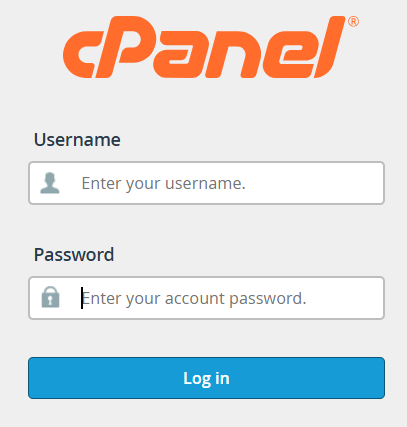
- Log in to your cPanel account.
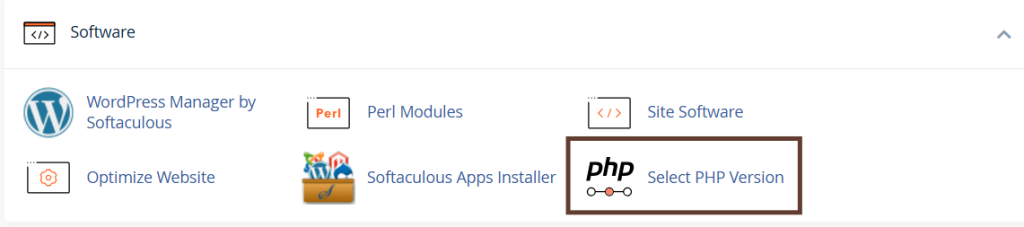
- Go to Select PHP Version or MultiPHP INI Editor.
- Locate and modify the following values:
upload_max_filesizepost_max_sizemax_execution_time
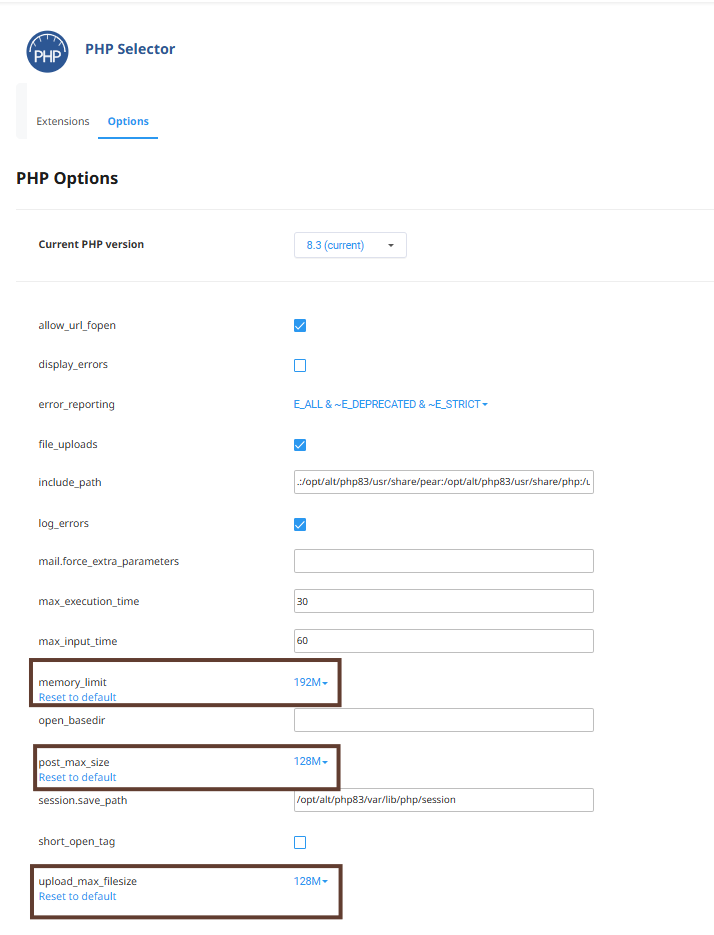
Save the changes and refresh your WordPress dashboard.
2. Increase Upload and PHP Limits
The most common reason for this error is insufficient PHP settings on your server. You can increase these limits in one of the following ways:
Option A: Modify the .htaccess File
- Access your website files using an FTP client or the File Manager in your hosting control panel (e.g., cPanel).
- Locate the
.htaccessfile in the root directory of your WordPress installation. - Add the following lines to the file:
php_value upload_max_filesize 64M
php_value post_max_size 64M
php_value max_execution_time 300
php_value max_input_time 300
Save the file and re-upload it to the server.
Option B: Update php.ini (if available)
- Navigate to the root folder of your WordPress installation.
- Look for the
php.inifile or create one if it doesn’t exist. - Add the following lines to the file:
upload_max_filesize = 64M
post_max_size = 64M
max_execution_time = 300
Save and upload the file to your server.
Option C: Edit wp-config.php
- Locate the
wp-config.phpfile in your WordPress root directory. - Add the following lines before the “That’s all, stop editing!” comment:
@ini_set('upload_max_filesize', '64M');
@ini_set('post_max_size', '64M');
@ini_set('max_execution_time', '300');
Save the changes and upload the file back to your server.

3. Use FTP for Large Uploads
As a workaround for uploading large themes or plugins:
- Use an FTP client (e.g., FileZilla) to upload the theme/plugin folder directly to:
wp-content/themes/(for themes)wp-content/plugins/(for plugins)
- Activate the theme or plugin from your WordPress dashboard.
4. Ensure WordPress is Updated
Running an outdated version of WordPress or its themes/plugins may cause compatibility issues. Update your WordPress core, themes, and plugins to the latest versions.
Conclusion
The error “The link you followed has expired” in WordPress is usually tied to server configurations that limit upload size or execution time. By modifying PHP settings, using FTP for large uploads, or contacting your hosting provider, you can quickly resolve the issue and continue managing your website without interruptions. Staying proactive by ensuring optimal server settings and keeping your WordPress setup updated will help prevent similar errors in the future. With these solutions, managing your WordPress website becomes a hassle-free experience.