Table of Contents
What is spam filter?

A spam filter is a software tool or system designed to detect and prevent unsolicited, unwanted, or malicious emails from reaching a user’s inbox. These unwanted emails, commonly referred to as “spam,” often include advertisements, phishing attempts, malware, or other undesirable content.
Spam filters work by analyzing incoming emails and applying various criteria to determine whether they are likely to be spam. This criteria may include:
- Content analysis: Examining the text, links, and attachments within an email to identify patterns commonly associated with spam.
- Sender reputation: Checking the reputation of the sender’s email address or domain to see if they have a history of sending spam.
- Blacklists and whitelists: Comparing the sender’s information against lists of known spammers (blacklists) or trusted senders (whitelists).
- Header analysis: Reviewing the technical information contained in the email’s header, such as IP addresses and routing information, to identify suspicious behavior.
- Behavioral analysis: Observing the recipient’s past interactions with emails to detect deviations from normal patterns, such as sudden increases in email volume or interactions with unfamiliar senders.
Spam filters typically operate automatically, silently diverting suspicious emails to a separate folder or marking them as spam within the user’s inbox. Users can also manually flag emails as spam to help improve the effectiveness of the filter over time.
Overall, spam filters are essential for managing the overwhelming volume of unwanted emails that individuals and businesses receive daily, helping to protect users from scams, malware, and other online threats.
Advantages and Disadvantages of spam filter
Spam filters offer several advantages and some disadvantages:
Advantages
- Reduction of Inbox Clutter: Spam filters help reduce the amount of unwanted emails that clutter users’ inboxes, allowing them to focus on important messages.
- Protection from Malware and Phishing: By filtering out suspicious emails, spam filters help protect users from malware infections and phishing attempts that could compromise their personal information or security.
- Time Savings: Filtering out spam emails saves users time that would otherwise be spent manually sorting through and deleting unwanted messages.
- Improved Productivity: With less time spent dealing with spam, users can focus their energy on more productive tasks, leading to improved efficiency and workflow.
- Customization and Control: Many spam filters allow users to customize settings to suit their preferences, such as adjusting sensitivity levels or creating whitelists and blacklists.
Disadvantages
- False Positives: One of the main drawbacks of spam filters is the potential for false positives, where legitimate emails are incorrectly flagged as spam and diverted away from the inbox. This can lead to important messages being missed if users do not regularly check their spam folders.
- Missed Spam: Conversely, spam filters may occasionally fail to catch all spam emails, allowing some unwanted messages to slip through into the inbox.
- Overblocking: In some cases, spam filters may be overly aggressive and block emails that users actually want to receive, particularly if the sender’s domain or IP address has been mistakenly flagged as spam.
- Resource Intensive: Implementing and maintaining effective spam filtering systems can require significant resources in terms of both hardware and software, as well as ongoing monitoring and updates to keep up with evolving spam tactics.
- Privacy Concerns: Some users may have concerns about the privacy implications of spam filtering, especially if the filtering process involves scanning the content of emails for keywords or other identifying information.
Features of spam filter
Spam filters typically employ a variety of features and techniques to effectively identify and block spam emails. Some common features include:
- Content Filtering: Analyzing the content of emails to detect common spam characteristics such as keywords, phrases, or patterns associated with spammy messages.
- Sender Reputation: Assessing the reputation of the sender’s email address or domain based on factors like previous behavior, spam reports, or authentication status (e.g., SPF, DKIM, DMARC).
- Blacklists and Whitelists: Maintaining lists of known spammers (blacklists) or trusted senders (whitelists) to automatically block or allow emails from specific addresses or domains.
- Heuristic Analysis: Employing algorithms to analyze various attributes of an email, such as header information, formatting, and language usage, to determine the likelihood of it being spam.
- Bayesian Filtering: Using statistical techniques to classify emails as spam or legitimate based on the probability of certain words or phrases appearing in spam messages versus legitimate ones.
- IP Address Analysis: Examining the IP addresses of email senders to identify suspicious or known spam sources, such as botnets or compromised servers.
- URL Filtering: Scanning email content for URLs and checking them against databases of known malicious or suspicious websites to detect phishing attempts or links to malware.
- Image Analysis: Analyzing images embedded within emails to detect common spam-related patterns, such as image-based text or hidden content.
- Spam Traps: Utilizing special email addresses or domains that are only used to receive spam, allowing the filter to identify and block messages sent to these addresses.
- User Feedback Mechanisms: Allowing users to manually mark emails as spam or not spam, which helps improve the filter’s accuracy over time through machine learning or rule adjustments.
- Customizable Settings: Providing users with options to adjust filter sensitivity levels, manage whitelists and blacklists, and customize other settings to better suit their preferences and needs.
- Real-Time Updates: Regularly updating filter databases and algorithms to adapt to new spamming techniques, trends, and emerging threats.
By combining these features and techniques, spam filters can effectively identify and block a wide range of spam emails while minimizing false positives and ensuring that legitimate messages reach users’ inboxes.
Steps for enabling spam filter in cPanel
Enabling the spam filter in cPanel is a straightforward process. Here’s a general guide on how to do it:
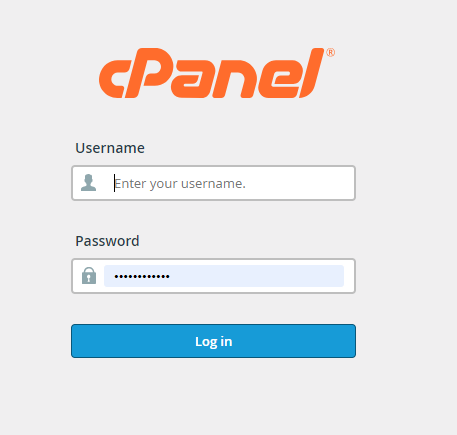
Log in to cPanel:
Go to your cPanel login page and enter your username and password to access your account.
Navigate to Email Settings
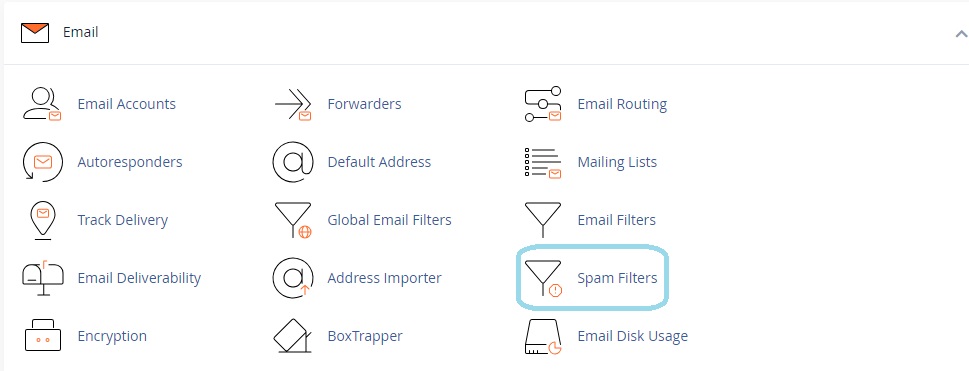
Once logged in, navigate to the “Email” section of cPanel. This may be labeled as “Email Accounts” or similar, depending on your cPanel theme.
Select “Spam Filters”
Look for an option labeled “Spam Filters” or “Apache SpamAssassin” within the Email section and click on it.
Enable Spam Filtering
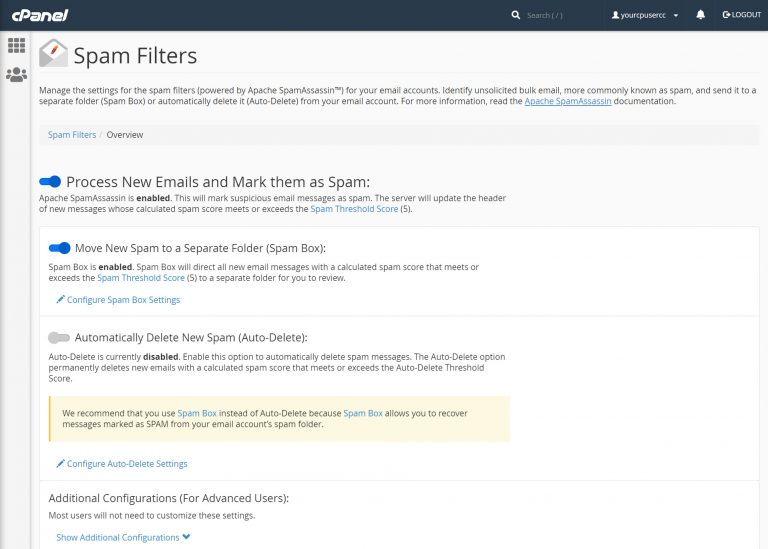
You should see an option to enable or disable spam filtering. Click on the “Enable Spam Filtering” button or toggle switch to turn on the spam filter.
Adjust Spam Threshold
Optionally, you may be able to adjust the spam threshold or sensitivity level. This determines how aggressively the spam filter will identify and filter out spam emails. You can typically set this to a level that suits your preferences or organization’s policies.
Save Changes:
After enabling the spam filter and making any desired adjustments, be sure to save your changes. Look for a “Save” or “Update” button to apply the settings.
Test the Spam Filter:
It’s a good idea to test the spam filter to ensure that it’s working correctly. You can send test emails containing typical spam characteristics to see if they are correctly filtered into the spam folder or flagged as spam.
Regularly Review Spam Folder
Once the spam filter is enabled, periodically check your spam folder to review any emails that have been flagged as spam. Sometimes legitimate emails may be mistakenly identified as spam, so it’s important to review and whitelist any such emails to ensure they reach your inbox.
The exact steps may vary slightly depending on the version of cPanel you’re using and your web hosting provider’s configuration. If you’re unsure about any specific steps or options, you can refer to cPanel’s documentation or contact your hosting provider for assistance.